CD-ROM Setup for PC Users
All the multimedia resources for the course music and interactive content are on the course CD-ROMs. Please make sure the correct CD-ROM is in the CD-ROM drive, and the CD-ROM Setup is properly configured.
WARNING: If you do not do the CD-ROM Setup properly, you will not be able to listen to music or view interactive content in the quizzes, exams, and course pages.
- Insert CD 1 (labeled OMA1) into the CD-ROM drive. Wait for 10 seconds.
Windows XP users: If a new window pops up and asks "What do you want Windows to do?", click Cancel.
CD Package |
Name of CD 1 |
Name of CD 2 |
| OnMusic Appreciation 2nd Edition (ISBN 007 721271-1) |
OMA1 |
OMA2 |
- Double-click "My Computer" icon on your desktop. If you do not have a "My Computer" icon on your deskstop, click Start button and click "My Computer."
In the "My Computer" window, you should see OMA1, and the drive letter beside the name of the CD-ROM disk.
Sample Picture for PC Windows Users
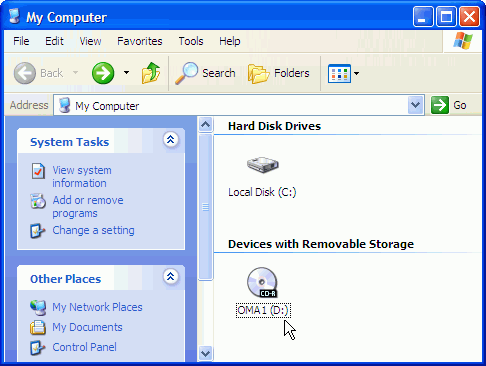
- Please write down your CD-ROM drive letter. You will need this information to complete the CD-ROM Setup process.
- Scroll to the bottom of the course page until you see the blue Student Control Panel.
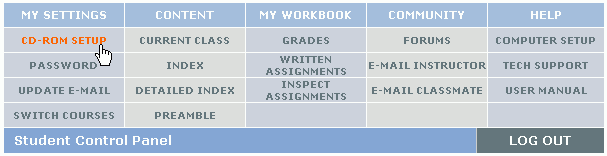
- Under the My Settings column, click CD-ROM Setup.
- Follow the PC Users directions on the CD-ROM Setup page.
- After you complete the setup, you should receive a confirmation that your CD-ROM setup has been changed.
IMPORTANT: You will need to do the CD-ROM Setup whenever you switch to a different computer.