




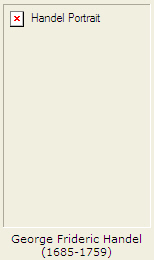
Some of the images in the course do not show up and have a 'X' mark.
The most common causes for this occurrence are:
- The correct course CD is not in the computer's CD-ROM drive.
To fix this
- Insert the CD-ROM disk into the CD-ROM drive. Wait for 10 seconds.
- Verify the CD-ROM drive is reading the CD-ROM disk.
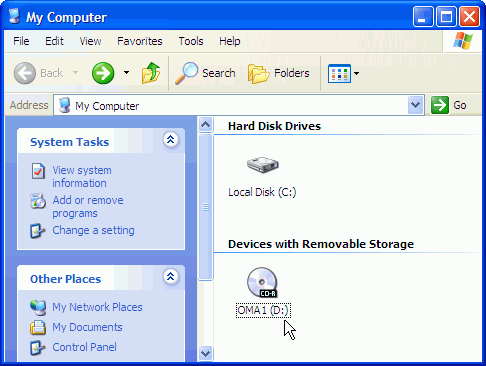
PC Users > Double-click My Computer icon on your desktop. You should see OMEM1 as the name of the CD-ROM 1 disk and OMEM2 for CD-ROM 2 disk. Please write down the drive letter next to the name of the CD.
Mac Users > On the desktop you should seeOMEM1for CD-ROM 1 disk and OMEM2 for CD-ROM 2 disk. Please write down the name of the CD-ROM disk that appears on the desktop.
- The CD-ROM Setup is not set properly.
To fix this:
- Launch Microsoft Internet Explorer and go to www.connect4education.org
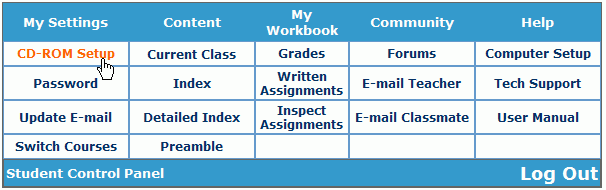
- Access the course and scroll to the bottom of the course until you see the blue Student Control Panel. Under the Content column, click CD-ROM Setup.
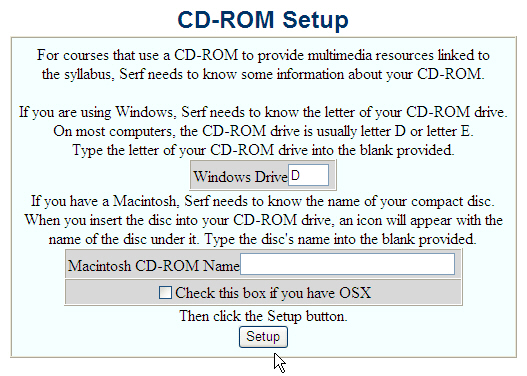
Windows users, type your CD-ROM drive letter in the Windows Drive field. Please note: The Windows Drive field and Macintosh CD-ROM Name field can't contain information at the same time. If you are using Windows, the Macintosh CD-ROM Name field should be empty. If you are using a Macintosh, the Windows Drive field should be empty.
- Click Setup. You will receive a confirmation "Your CD-ROM setup has been changed."
- Reminder: Anytime you switch to a different computer you will need to do your CD-ROM Setup in the course.