






- I've installed RealPlayer already. I can't access the listening samples. I get a "Requested file not found. The link you followed may be outdated or inaccurate." error message.
- It is taking forever to download the music examples. It asks if I want to save or open it.
I've installed RealPlayer already. I can't access the listening samples. I get a "Requested file not found. The link you followed may be outdated or inaccurate." error message.
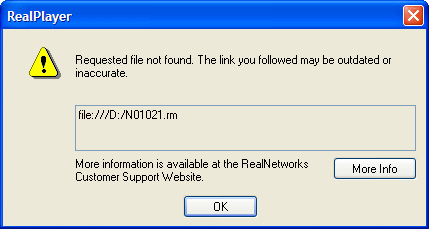
A: The most common causes for this occurrence are:
- The correct course CD is not in the computer's CD-ROM drive.
To fix this
- Insert the CD-ROM disk into the CD-ROM drive. Wait for 10 seconds.
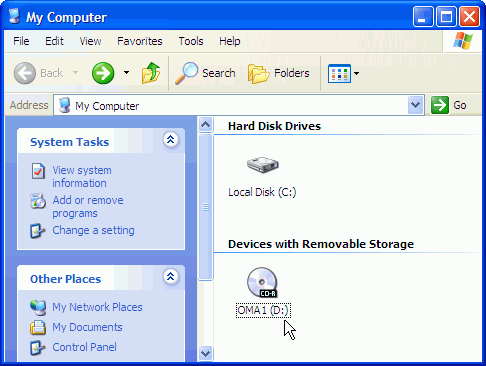
- Verify the CD-ROM drive is reading the CD-ROM disk.
PC Users > Double-click "My Computer" icon on your desktop. You should see the name of the CD-ROM disk and the drive letter beside the name of the CD-ROM disk.
- For example, if you are taking OnMusic Appreciation you will see "OMA1" as the name of the CD-ROM disk 1.
- The CD-ROM Setup in the course is not correct.
To fix this:
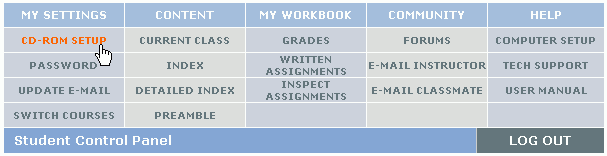
- PC users, launch Microsoft Internet Explorer and go to www.connect4education.org.
- Follow the directions on the CD-ROM Setup page.
- After you complete the setup, you should receive a confirmation that your CD-ROM setup has been changed.
- Reminder: Anytime you switch to a different computer you will need to do your CD-ROM Setup in the course.

It is taking forever to download the music examples. It asks if I want to save or open it.
Don't download any music examples. If you are given the option to Save to disk, do NOT save it. You will need to install RealPlayer.
FREE REALPLAYER
- Go to www.real.com
- On the right hand side, click the orange button "Free Download."
- Follow the download and installation instructions on this screen.